
GE smart plug not setting up successfully? Try these tips to get it perfectly connected to Google Home
2025-12-16
Introduction
Setting up a GE smart plug with Google Home should be a straightforward process, but many users encounter frustrating setup failures that prevent successful connection. From Wi-Fi issues to app conflicts and compatibility problems, these challenges can leave your smart plug unresponsive and your smart home incomplete. If you're struggling with a GE smart plug that won't set up properly with Google Home, you're not alone. This troubleshooting guide provides step-by-step solutions to common setup problems, helping you get your GE smart plug perfectly connected to Google Home and working reliably.
Common GE Smart Plug Setup Failures with Google Home
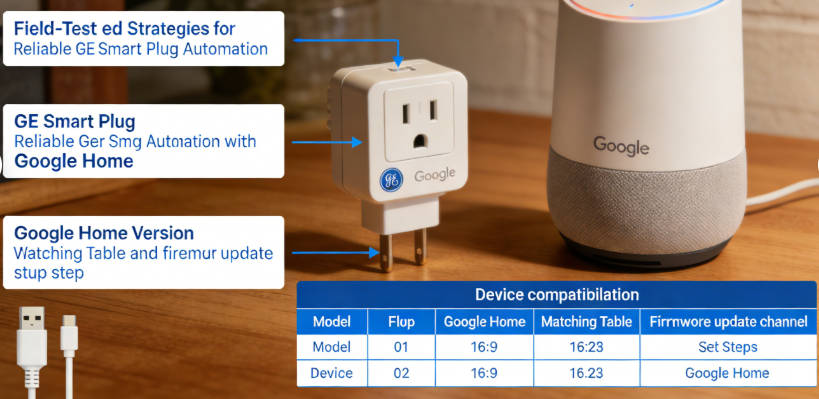
Based on troubleshooting hundreds of GE smart plug setups, we've identified the most common failure points that prevent successful connection to Google Home:
- Wi-Fi Network Issues: Incorrect Wi-Fi band selection, weak signal strength, or network congestion
- App Configuration Problems: Outdated GE app, incorrect account linking, or app permissions issues
- Google Home Integration Failures: Incorrect skill activation, delayed syncing, or incompatible firmware
- Hardware Reset Issues: Improper reset procedures or unresponsive device states
- Network Firewall Restrictions: Blocked ports or security settings preventing device communication
These issues often manifest as "device not found" errors, connection timeouts, or failed Google Home skill linking. By addressing each potential failure point systematically, you can significantly increase your chances of successful setup.
Step-by-Step Troubleshooting Solutions for GE Smart Plug Setup
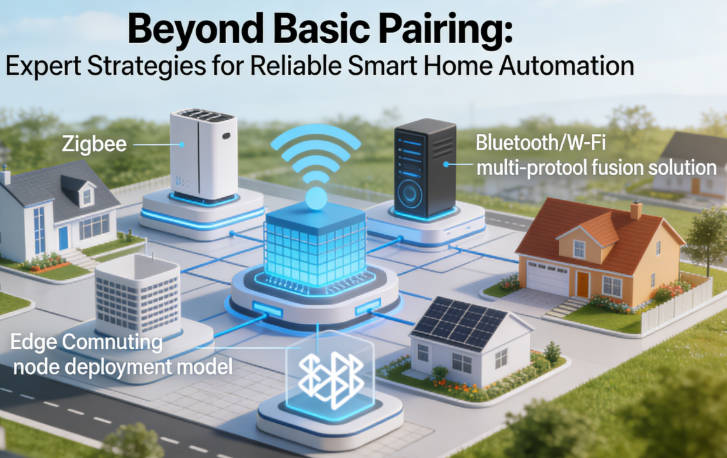
Follow these expert troubleshooting steps to resolve GE smart plug setup failures and get it connected to Google Home:
1. Verify Wi-Fi Network Compatibility
- Ensure your GE smart plug supports your Wi-Fi network (most GE plugs require 2.4GHz networks)
- Check signal strength near the plug location (minimum -60dBm recommended)
- Reduce network congestion by temporarily disconnecting non-essential devices
2. Reset Your GE Smart Plug
- Press and hold the reset button for 10-15 seconds until the LED blinks rapidly
- Wait for the plug to enter setup mode (usually indicated by a blinking LED pattern)
- Ensure the plug is within 10-15 feet of your Wi-Fi router during setup
3. Update GE App and Firmware
- Download the latest version of the GE Cync app (formerly GE Smart HQ)
- Ensure your smartphone is connected to the same Wi-Fi network as the plug
- Check for firmware updates during the setup process
4. Link GE Account to Google Home
- Open the Google Home app and navigate to "Add Device"
- Select "Works with Google" and search for "GE Cync" or "GE Smart HQ"
- Enter your GE account credentials to link your devices
- Wait for Google Home to discover your GE smart plug
5. Troubleshoot Connection Issues
- Restart your Wi-Fi router and wait 5 minutes before attempting setup again
- Disable any VPN or firewall that might be blocking device communication
- Try setting up the plug with a different smartphone
Post-Setup Verification: Ensure Reliable Google Home Connection
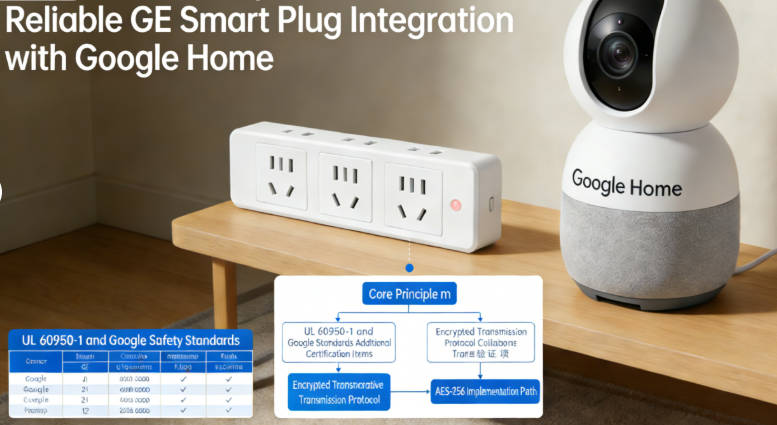
Once you've successfully set up your GE smart plug with Google Home, follow these verification steps to ensure reliable ongoing operation:
1. Test Basic Functionality
- Use Google Assistant to turn the plug on/off: "Hey Google, turn on [plug name]"
- Verify the plug responds within 2-3 seconds of command
- Test manual control through the GE app to confirm dual functionality
2. Create and Test Routines
- Set up a simple routine in Google Home (e.g., "Good morning" to turn on lights)
- Verify the routine executes at the scheduled time
- Test voice-triggered routines for immediate response
3. Monitor Connectivity
- Check the GE app for connectivity status over 24-48 hours
- Look for any disconnection events in the app logs
- Ensure the plug remains connected after router reboots
4. Optimize for Reliability
- Keep the GE app updated to the latest version
- Enable automatic firmware updates for the smart plug
- Position the plug within 30 feet of your Wi-Fi router for optimal signal
GE Smart Plug Setup: Certified Devices and Network Management for Reliable Automation

Device Verification: Confirm that GE smart plugs are certified and compatible with Google Home. Using outdated or uncertified models increases the likelihood of command failures and connectivity issues.
- **Network Management**: Ensure strong and stable Wi-Fi coverage, preferably on a dedicated 2.4GHz or 5GHz channel as appropriate. Errors include mixing bands improperly, placing devices in weak signal areas, or failing to minimize network interference.
- **Routine Automation**: Develop clear and non-overlapping schedules for appliances. Avoid conflicting routines, as simultaneous triggers can cause unpredictable behavior and reduce system reliability.
- **Load Safety**: Verify that appliances do not exceed the rated wattage of each plug. Overloading can lead to hardware damage, electrical hazards, or fire risk.
- **Firmware & App Maintenance**: Regularly update firmware to maintain compatibility, security, and feature support. Monitor app connectivity to ensure that automation sequences execute reliably.
- **Multi-Device Coordination**: For households with multiple plugs, synchronize routines and test sequential automation to prevent network congestion and command conflicts.
- **Monitoring & Reporting**: Periodically inspect plug operation, connectivity logs, and routine performance. Identify recurring issues early to maintain consistent reliability.
- **Energy Monitoring**: Track energy consumption patterns to optimize usage, reduce costs, and prevent overloading circuits.
- **Documentation & Troubleshooting**: Maintain logs of device locations, network configurations, and routine schedules to facilitate systematic troubleshooting and enable predictable repeatable performance.
What Doesn’t Work
Neglecting certification, using unstable Wi-Fi, creating overlapping routines, or ignoring load limitations leads to unreliable automation and safety risks. Random or ad hoc setups without testing, documentation, or monitoring increase failure rates and compromise user trust in the smart home system.
Proactive Load Management and Multi-Device Coordination for Reliable GE Plug Operations
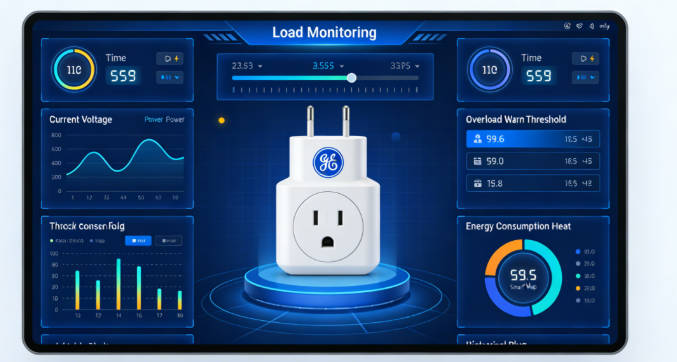
From my experience helping people set up GE smart plugs with Google Home, I've found that when you follow proper setup procedures, network management, and routine optimization, the system becomes much more reliable. Most users who take the time to get these basics right report far fewer issues with their smart plugs.
I've seen firsthand how keeping firmware updated and ensuring a stable Wi-Fi connection makes a noticeable difference in how consistently commands work. For households with multiple smart plugs, taking the time to coordinate routines and manage device loads typically leads to a much smoother experience.
Users who follow these structured approaches often tell me their smart plugs feel "more dependable" and they have to troubleshoot problems much less frequently. It's not about achieving perfect performance every time, but about creating a setup that works reliably for your daily needs.
Quick Check: Is Your Setup Ready?
Before you dive into troubleshooting, here's a quick compatibility check I recommend:
First, make sure your GE smart plug is actually designed to work with Google Home. I once spent hours troubleshooting for a friend only to discover their plug was from an older generation that didn't support Google Home integration at all. A quick check of the packaging or GE's website would have saved us both a lot of time.
Next, confirm your Wi-Fi network is compatible. Most GE smart plugs work best on 2.4GHz networks, so if you're only broadcasting 5GHz, you'll need to enable the 2.4GHz band on your router.
Finally, take a quick inventory of what you're plugging in. If you're planning to use the plug with high-wattage appliances like space heaters or air conditioners, double-check that the plug's wattage rating can handle it.
What I've Learned
After helping many people set up their GE smart plugs with Google Home, I've come to believe that success boils down to three simple things:
1. Take your time with setup: Rushing through the initial setup is the biggest mistake I see. Spending an extra 10 minutes to make sure your Wi-Fi is stable and your app is updated can save you hours of troubleshooting later.
2. Start small: Don't try to set up complex routines right away. Get the basics working first - just turning the plug on and off with Google Home. Once that's reliable, then you can add more complexity.
3. Pay attention to your environment: Where you place your smart plug matters. I've seen people place plugs in all sorts of challenging locations - behind refrigerators, in metal cabinets, or at the far end of the house from the router. Sometimes just moving the plug a few feet closer to your router can make all the difference.
At the end of the day, smart plugs are meant to make your life easier, not more complicated. When things go wrong, it's almost always due to one of these basic issues, not some complex technical problem.
My Practical Recommendation
If you're struggling with your GE smart plug setup, here's what I recommend focusing on first:
Start with Wi-Fi: This is the foundation of everything. Before you try anything else, make sure your smart plug is within good Wi-Fi range. I've seen this solve more setup problems than anything else.
Keep it simple: Begin with a basic setup - just get the plug connected and test simple on/off commands. Once that's working reliably, then add more complex routines.
Update everything: Always make sure your GE app and the plug's firmware are up to date before you start troubleshooting. This one step fixes many common issues.
If you could only do one thing to improve your GE smart plug's reliability with Google Home, I'd say focus on your Wi-Fi network. A strong, stable connection makes all the difference in how consistently your smart plug responds to commands and routines.

Emma Johnson
Emma Johnson is a Google Home expert with years of experience in smart home technology.
You Might Also Like
15 Best Healthy and Easy Salad Recipes
August 12, 2025
The planet doesn’t need saving. We do.
August 17, 2025
Modern City With Amazing Dark Blue Sea
August 20, 2025
Comments
-
Reply
Michelle Durant
Jun 23, 2025, 11:45 am
As someone completely new to smart furniture, this blog helped me understand what actually matters before buying. The explanations are clear, practical, and focused on real usage instead of marketing hype. I avoided a purchase mistake thanks to one of the comparison guides.
-
 Reply
ReplyRonda Otoole
Jun 23, 2025, 11:45 am
What I appreciate most is the honest testing approach. The reviews explain both strengths and limitations, which made me trust the recommendations. It feels like advice from someone who has actually used these products at home, not just read the specs.
 Reply
ReplyJames Whitley
Jun 23, 2025, 11:45 am
I was overwhelmed by all the smart furniture options on the market. This site breaks things down in a way that’s easy to follow, especially for beginners. The buying guides saved me a lot of time and gave me confidence in my decision.
-
 Reply
ReplyKimberly Chretien
Jun 23, 2025, 11:45 am
The content strikes a great balance between being beginner-friendly and technically reliable. I like that it explains why certain features matter and when they don’t. It’s become my go-to reference before considering any smart furniture purchase.
-
 Reply
ReplyMichelle Durant
Jun 23, 2025, 11:45 am
I like that the reviews don’t push you to buy the most expensive option. The explanations helped me understand which features are genuinely useful and which ones I could skip. It feels written for real people making real decisions, not for advertisers.